Transcribe WhatsApp voice messages to text, free and with no sign-up
In short
Download the WhatsApp voice message to your computer and drop it in the box below: the text shows up right here, ready to copy or download. It's free, with no account and no minute limit, and the audio never leaves your computer, because Whisper, OpenAI's speech recognition (OpenAI makes ChatGPT), runs inside your browser, in Chrome or Edge. If you just want to read a voice message on your phone, WhatsApp can transcribe it too: turn it on in Settings › Chats › Voice Message Transcripts.
Your audio never leaves your computer: Whisper runs here, in your browser.
How to use it
- Get the voice message out of WhatsApp as a file. See below for how, from your computer or from your phone.
- Choose the file in the box, or drop it there. Voice messages you download from WhatsApp work (including files ending in .opus or .ogg), and so do MP3, M4A and WAV files and videos.
- Pick the audio's language. If it isn't English or Spanish, click Other and Whisper figures it out.
- Click Transcribe. You can keep using your computer; just don't close this tab.
- Click Copy or Download .txt.
Want the text with the minute and second of each line? Before you transcribe, tick With timings for subtitles (.srt). It takes about twice as long.
How to get the audio out of WhatsApp
With WhatsApp Web or the desktop app
This is the shortest route, because the file lands right on your computer.
- Open the chat in WhatsApp Web or in the WhatsApp app for Windows or Mac.
- Open the voice message's menu and download it. In the desktop app, the option is called Save to downloads, and the folder depends on your computer's settings.
- Drop the file on the box above.
Can't find the voice message on your computer? From your phone, forward it to yourself: tap and hold the voice message, tap forward, search for your name or number and send it. Then find it in the chat with yourself, in WhatsApp Web or the desktop app, and download it there.
From your phone, without WhatsApp on your computer
Export the chat with the voice message and send it to yourself:
- On Android: open the chat, tap ⋮ › More › Export chat, choose Include media and send it to yourself, for example by email. WhatsApp attaches the chat's most recent media (voice messages count as media), so this works for a recent voice message.
- On iPhone: open the chat, tap the contact's or group's name › Export chat › With selected media… and pick the voice message. Then save it or send it to yourself, for example with Save to Files. WhatsApp exports it as a ZIP file: open it on your computer and drop the audio on the box.
View once voice messages disappear from the chat after they're played, so there's no file to get.
WhatsApp's own transcripts
WhatsApp can also turn the voice messages you receive into text:
- It's off by default. Go to Settings › Chats, turn on Voice Message Transcripts, tap Choose language and pick the language most of your voice messages come in.
- To read a voice message, tap and hold it, then tap Transcribe. On Android, tap ⋮ first.
- On Android it understands English, Spanish, Portuguese and Russian.
- On iPhone you need iOS 16 or later and Siri turned on. The languages depend on your iOS version; English and Spanish are there from iOS 16.
- On a computer (WhatsApp Web and the Windows and Mac apps), WhatsApp's help center says the feature is only on certain devices and may not be available to you yet.
If you see "Transcript unavailable", WhatsApp gives three reasons: the language you chose doesn't match the voice message, background noise keeps some words from being recognized, or the voice message's language isn't supported. It also warns that transcripts may be inaccurate.
When this page is the better choice
WhatsApp's transcripts are the fastest way to read a voice message on your phone without playing it. This page is the better choice when:
- You need to keep the text. Copy it or download it as .txt, or as .srt with the timing of each line.
- The voice message is long. There's no length limit here.
- You get voice messages in several languages. In WhatsApp you pick one language for transcripts; here you pick it for each file.
- The audio isn't in WhatsApp anymore. Any audio or video file on your computer works.
- WhatsApp's transcripts don't show up for you, on your computer, for example.
And its limits, so nothing catches you off guard:
- It's for computers, with an up-to-date Chrome or Edge. If your browser can't use the graphics, the page offers the processor instead: same text, but it takes several times longer. In Safari or Firefox, depending on the version, it may only work with the processor. A phone isn't a good fit: it's about 770 MB to download, and many phones don't have the memory for Whisper.
- The first time, it downloads Whisper (about 770 MB) and keeps it for next time.
- Speed depends on your computer. On a powerful laptop, it takes about as long as the audio; on a more modest one, longer.
- Check the text. It makes more mistakes with background noise or several people talking at once, and it struggles with brand names, unusual names and technical words.
- One file at a time. For several voice messages, transcribe them one after another.
WhatsApp Business
WhatsApp's help center says WhatsApp Business, for Android and iPhone, is meant to feel and work just like WhatsApp. If your app shows the same options, you get the audio out the same way: download it from WhatsApp Web or the desktop app, forward it to yourself, or export the chat.
It helps, for example, if customers send you orders as voice messages: turn the audio into text here and copy the order, the address or the phone number into your order sheet, without playing it three times. And your customer's audio never leaves your computer.
Privacy
- On this page, your computer reads the audio and turns it into text inside the browser. The only downloads are Whisper and the page's code; your audio, never. We don't ask for an account either.
- In WhatsApp, according to its help center, transcripts are created on your phone and voice messages stay end-to-end encrypted: no one outside the chat, not even WhatsApp, can listen to them or see what the transcript says. The person who sent the voice message can't see it.
- On other sites, your audio is usually uploaded to their servers. If it's from a client, a patient or your family, it's worth knowing where it goes.
If you want to reply without typing
This page turns audio that already exists into text. To reply in writing with your voice, we made Loro: in WhatsApp Web or the desktop app, click in the message box, hold Ctrl + Win (fn on a Mac), talk and let go, and the message appears written, without the "um"s. It works in WhatsApp Business on your computer too. Loro doesn't transcribe audio files: that's what this page is for. Here's how to dictate in WhatsApp on your computer.
Try Loro for free
Dictate in any app and get notes from your meetings, with no bot. For Windows and Mac, no card needed.
Frequently asked questions
How do I turn a WhatsApp voice message into text for free?
Download it to your computer from WhatsApp Web or the desktop app and drop it on the box on this page. It's free, with no account. On your phone, you can also turn on WhatsApp's transcripts in Settings › Chats › Voice Message Transcripts.
Can I transcribe a WhatsApp voice message on an iPhone?
Yes, with WhatsApp's transcripts: you need iOS 16 or later and Siri turned on. Turn them on in Settings › Chats, tap and hold the voice message and tap Transcribe. To keep the text or transcribe a long voice message, get it to your computer and use this page.
Why don't I see the Transcribe option in WhatsApp?
Because it's off by default: turn it on in Settings › Chats › Voice Message Transcripts. On iPhone, check that you have iOS 16 or later and Siri turned on. On a computer, WhatsApp says the feature is only on certain devices.
Does it work with WhatsApp Business voice messages?
Yes. The page reads the audio file whether it comes from WhatsApp or WhatsApp Business, and according to WhatsApp's help center the two apps work alike, so you get the audio out the same way.
Is my audio uploaded to the internet?
No. Your computer reads the audio and turns it into text inside the browser. The only downloads are Whisper and this page's code.
Can I transcribe several voice messages?
Yes, one after another. Whisper downloads the first time and stays saved, so the next ones start after a few seconds of setup.
Sources
- WhatsApp, How to turn voice message transcripts on or off, checked on October 28, 2026.
- WhatsApp, Can't see voice message transcript, checked on October 28, 2026.
- WhatsApp, How to download media files on Mac and Windows computers, checked on October 28, 2026.
- WhatsApp, How to message yourself, checked on October 28, 2026.
- WhatsApp, How to export your chat history, checked on October 28, 2026.
- WhatsApp, Can't download, open, or send media files (what counts as media), checked on October 28, 2026.
- WhatsApp, How to send and open view once media and voice messages, checked on October 28, 2026.
- WhatsApp, About WhatsApp Business, checked on October 28, 2026.
- OpenAI, Whisper: the model, under the MIT license. Checked on October 28, 2026.
- Hugging Face, whisper-large-v3-turbo for the browser: the version this page uses. Checked on October 28, 2026.
Keep reading
 Free tools
Transcribe audio to text
Transcribe an audio file, a WhatsApp voice note or a video to text for free, with no sign-up and no minute limit. Whisper runs in your browser, so your audio never leaves your computer.
Free tools
Transcribe audio to text
Transcribe an audio file, a WhatsApp voice note or a video to text for free, with no sign-up and no minute limit. Whisper runs in your browser, so your audio never leaves your computer.
 Voice dictation
Dictate on WhatsApp
WhatsApp's microphone on the computer records voice notes, it doesn't type. Here's how to dictate text messages in WhatsApp Web and the desktop app, on Windows and Mac, for free.
Voice dictation
Dictate on WhatsApp
WhatsApp's microphone on the computer records voice notes, it doesn't type. Here's how to dictate text messages in WhatsApp Web and the desktop app, on Windows and Mac, for free.
 Key concepts
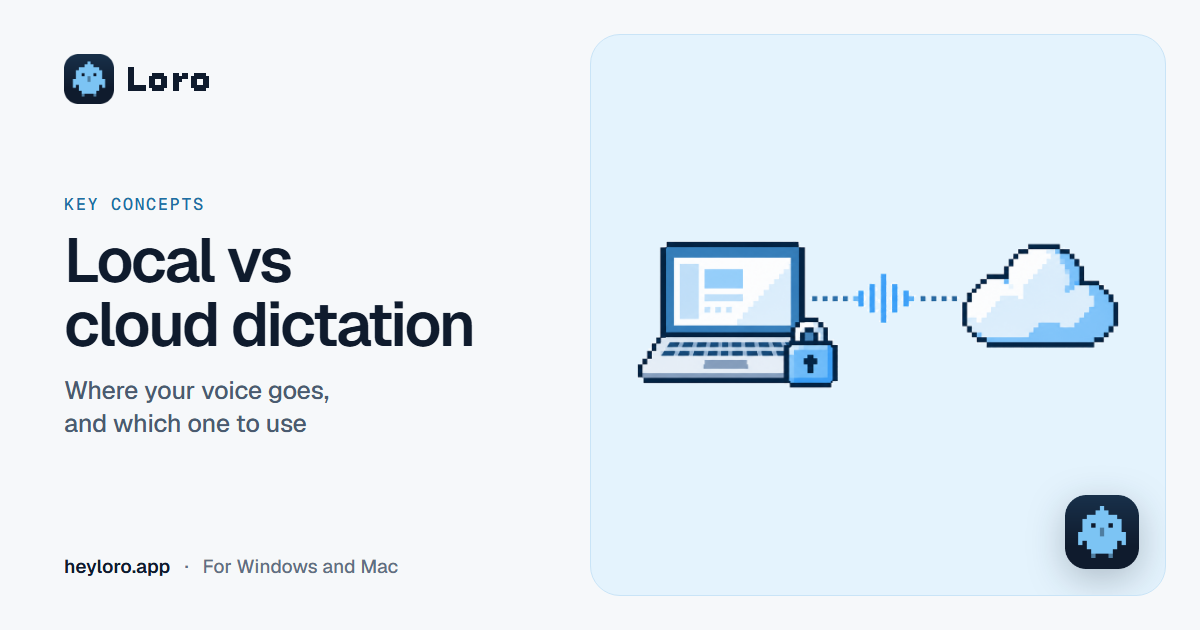
Local vs cloud dictation
What it means for a dictation or meeting notes app to run "on your computer" or "in the cloud", what each one gains and loses, and how Loro handles your voice.
Key concepts
Local vs cloud dictation
What it means for a dictation or meeting notes app to run "on your computer" or "in the cloud", what each one gains and loses, and how Loro handles your voice.
 For your work
Loro for your business
How small business owners use voice dictation and meeting notes on their computer: replies to customers on WhatsApp, emails to suppliers, product descriptions and the to-dos from every call.
For your work
Loro for your business
How small business owners use voice dictation and meeting notes on their computer: replies to customers on WhatsApp, emails to suppliers, product descriptions and the to-dos from every call.
WhatsApp, OpenAI Whisper, Siri, Google Chrome, Microsoft Edge, Windows and macOS are trademarks of their owners. Loro is not affiliated with them. Each app's details come from its official pages, checked on October 28, 2026.